
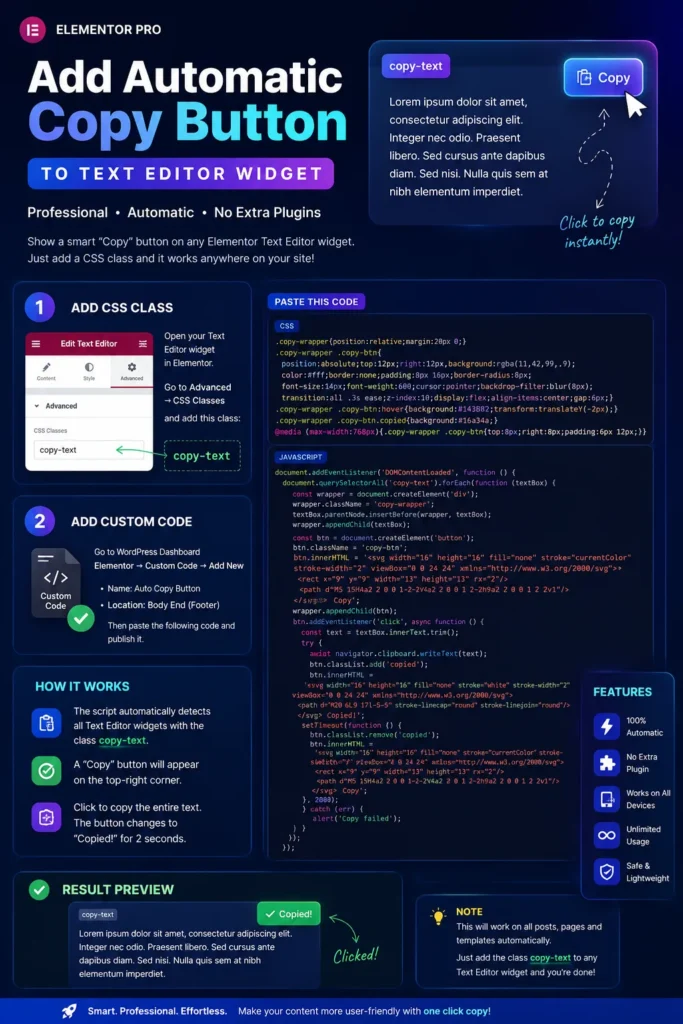
Automatic Copy Button for Elementor Pro
I can create a professional automatic Copy Button for your Elementor Pro website.
From now on, you only need to add the CSS class copy-text to any Elementor Text Editor widget, and a 📋 Copy button will automatically appear. You will not need to add an HTML button manually for each post.
Step 1: Add a CSS Class
Open your Elementor Text Editor widget.
Go to:
Advanced → CSS Classes
Enter the following class:
copy-text
Step 2: Add the JavaScript
In your WordPress Dashboard, navigate to:
Elementor → Custom Code → Add New
- Name: Auto Copy Button
- Location: Body End (Footer)
Paste the complete JavaScript code there.
Step 3: Publish
- Click Publish.
- Clear your website cache (if you are using a caching plugin).
Result
Every Elementor Text Editor widget that has the copy-text class will automatically display a 📋 Copy button, similar to GitHub.
When a visitor clicks the button:
- The entire text inside that specific Text Editor widget will be copied to the clipboard.
- The button will change to ✅ Copied! for 2 seconds.
- It will then automatically change back to 📋 Copy.
This solution works with multiple Text Editor widgets on the same page and is fully compatible with Elementor Pro Single Post Templates, so it will work automatically for all future posts.